How to create a custom report template in DocNote (video)
Build report templates that keep your own writing style: pre-filled operative reports from a Word file, or specialist consultations with your section order. Video in French.
 Dr. Alice Gilson·Doctor & Managing Director 3 min read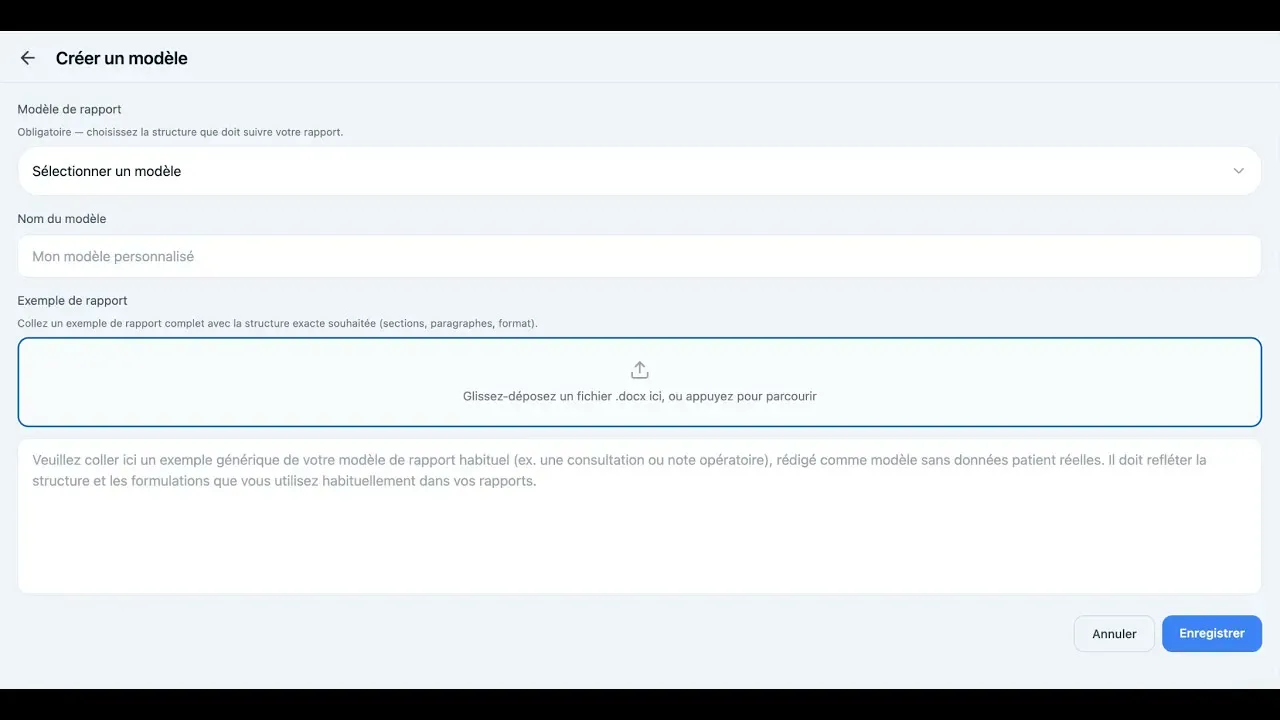
Every doctor writes differently. Consultation notes, operative reports, discharge letters and follow-up notes all carry a personal style, and we think the AI should adapt to the doctor rather than the other way round. That is why DocNote lets you create fully custom report templates inside the app. This video (in French) shows how, with two concrete examples. The steps are written out below.
Where templates live
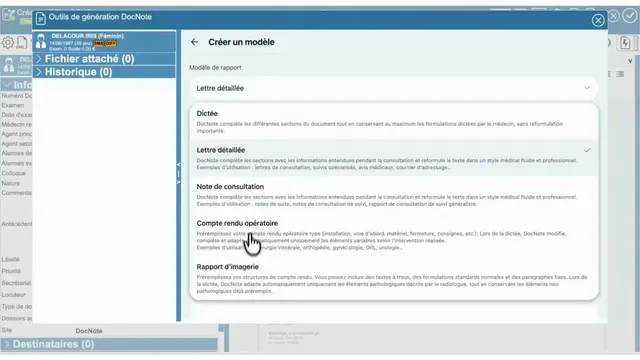
Open the settings from the bottom left of the screen, then the “Templates” tab in the top right. You will find two lists: the templates that already appear in your dropdown menu when you create a consultation, and all the other templates available in DocNote. You can add any of them to your own menu.
The button in the top right lets you create your own template. The first question is which kind of report you want, because DocNote handles two very different cases.
Two kinds of custom templates
A pre-filled report. Think of an operative report for a routine procedure. The template contains the full text with your usual phrasing, or a fill-in-the-blanks version, and the AI only changes what you tell it. This is the right choice when 90 percent of the report is identical from one patient to the next.
A structured consultation. For a follow-up or specialist consultation, the template is a skeleton: your paragraph titles in your order, left empty. The AI fills each section while keeping your structure.
Example 1: a pre-filled operative report
A visceral surgeon wants a template for inguinal hernia repair. They select a Word document from their files, and DocNote loads it directly into the app. They can read it through and adjust it if needed. Every step of the surgical description is already there. Once saved, the template appears under “My templates”.
When it comes to a real case, the surgeon selects that template, creates a consultation and simply says what changes, for example “left inguinal hernia repair”. The audio is transcribed and the report is generated with the corrections stated in the recording applied to the pre-filled text.
Example 2: a specialist consultation
For a wrist-specific consultation, you write the paragraph titles in the order you want them. You can paste in your clinical examination or other reusable content, including choices the AI can pick from, such as right wrist or left wrist. You can even add pre-written introduction or conclusion sentences. Save it and it joins “My templates” as well.
Using your template
When you create a new consultation, your custom template is now in the dropdown menu next to the built-in ones. Record as usual: DocNote transcribes, then generates the report inside your structure and with your wording.
If you already have templates in Word or PDF, importing them is the fastest way to get started. If not, a simple list of section titles is enough to get a template that already feels like yours.
Related articles
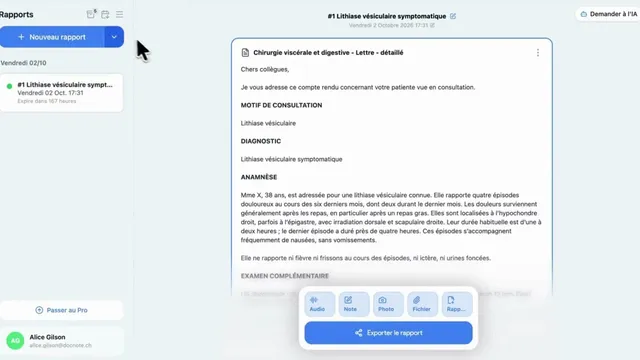
DocNote for medical secretaries: review reports and prepare consultations (video)
One secretary account for several doctors: review and send reports, schedule appointments straight from the day's agenda and prepare patient files. Video in French.
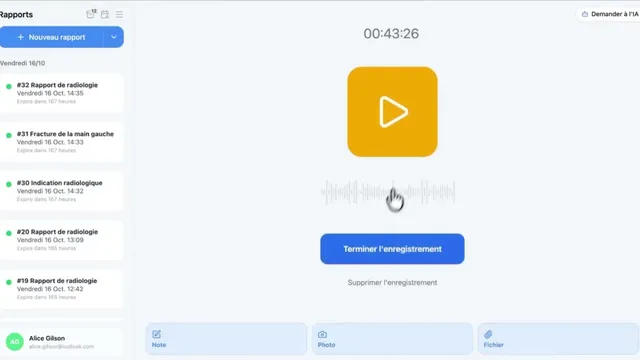
Using DocNote from Axenita: request the connection and send reports to the patient file (video)
Request the Axenita connection from DocNote settings, open DocNote from the patient file, generate your report and add it to the consultation in Axenita. Video in French.
Using DocNote from EDL Xplore for radiology reports (video)
Open DocNote from the EDL Xplore RIS, dictate only what differs from your normal template, and get the full structured radiology report back in EDL. Video in French.